Adding & Managing Businesses
With your account and workspace set up, it's time to add the business you actually want to track. This article covers how adding a business works, exactly what data AuraLocal pulls in automatically, and how to keep a business profile accurate once it's in your dashboard — whether that's one business or a hundred.
Adding Your First Business
Adding a business takes less than a minute:
- 1Click the "+ Add Business" button in the sidebar or on the profiles page
- 2Choose to import your business from Google, or search for it manually
- 3If you search manually, type your business name and city — AuraLocal searches Google Maps and returns matching results — then click your business to select it
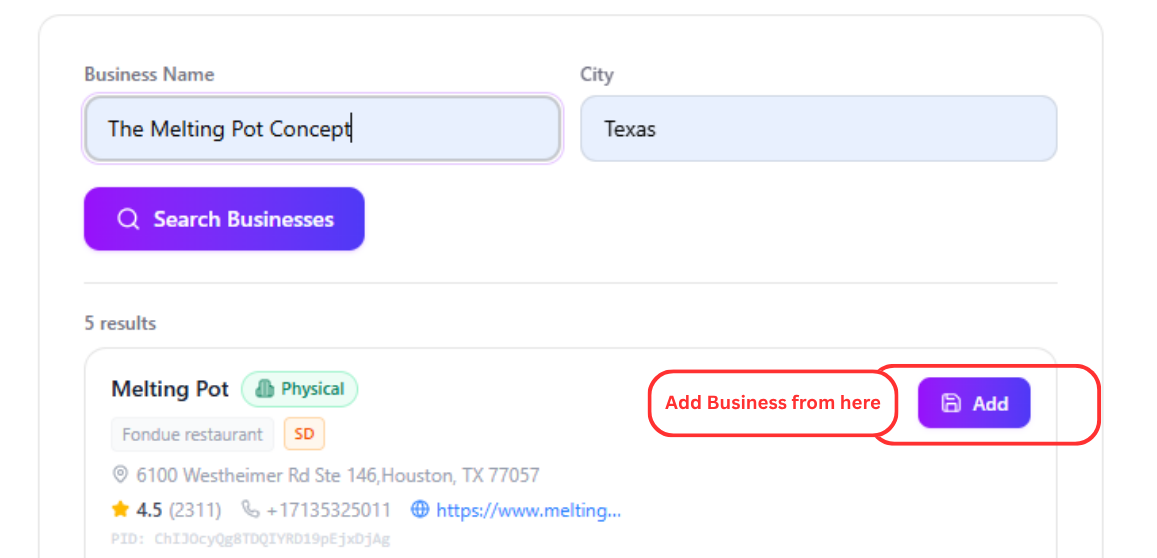
- 4Click Add — AuraLocal pulls in all available data (address, phone, website, hours, reviews, photos)
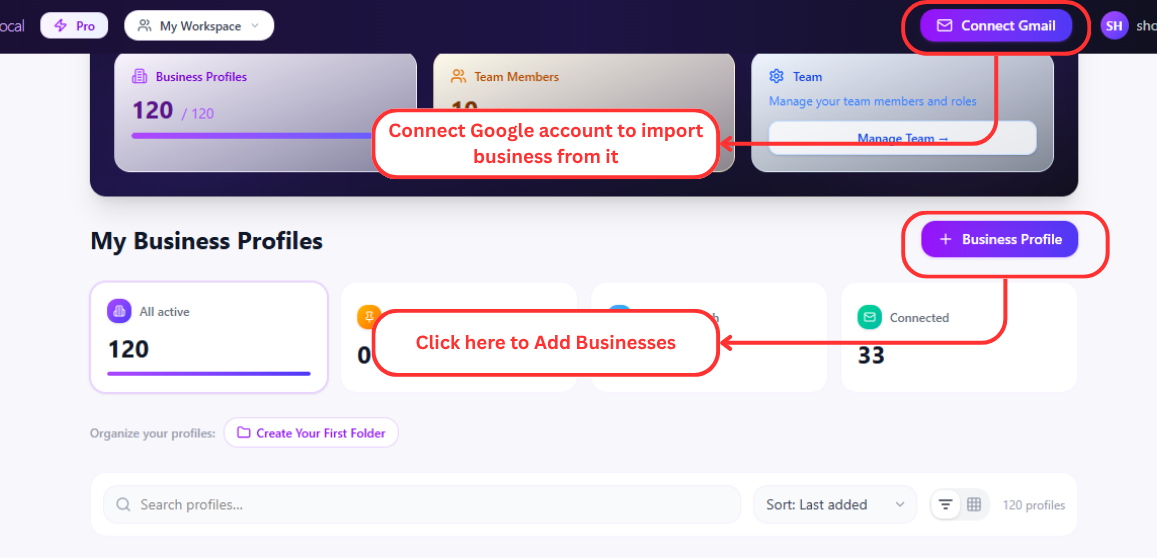
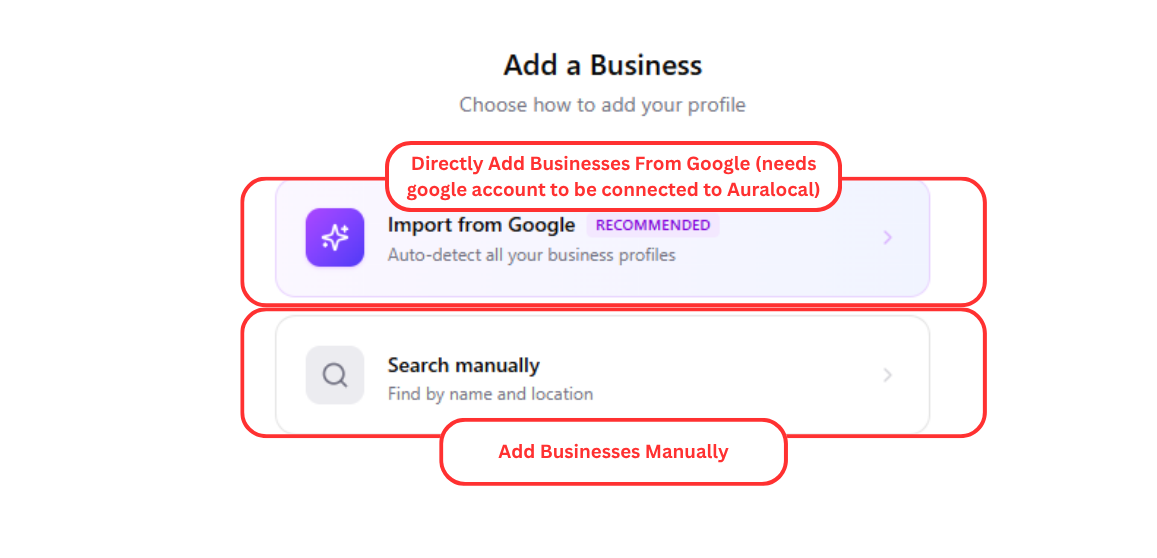
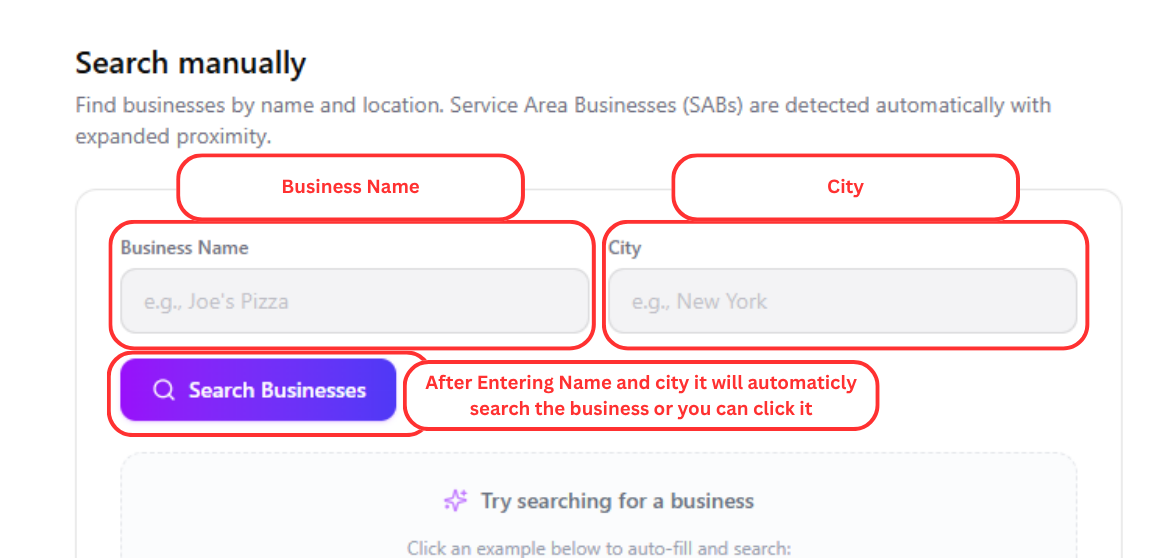
Because AuraLocal searches Google Maps directly, you don't need to already have a connected or verified Google Business Profile to add a business — if it's listed on Google Maps, you can search for it and import it. That makes it easy to add a prospect's business to evaluate before you've even signed them as a client, not just businesses you already manage. Connecting the actual GBP account is a separate step, covered in the Google Business Profile article, and is only needed once you want to manage posts, metrics, and reviews directly.
If your business has multiple locations, or if you're an agency adding businesses on behalf of several clients, repeat the same process for each one — there's no limit to how many businesses you can search for and preview, though your plan determines how many you can actively track.
What Gets Imported
When you add a business, AuraLocal automatically imports:
- Business name, address, phone number, website
- Google Maps place ID
- Opening hours
- Photos from Google
- Review count and average rating
- Category and additional categories
- Service area (for SABs — Service Area Businesses)
That last field matters more than it might look. If your business is a Service Area Business (SAB) — a plumber, mobile detailer, or home cleaning company that serves customers without a public storefront — AuraLocal imports the service area radius or list of cities Google has on file, rather than treating it as a single fixed address. That distinction carries through into keyword tracking later, since it affects how location-based rank checks are interpreted.
Everything imported here becomes the baseline AuraLocal works from. You're not re-entering data Google already has — you're importing it once, then keeping it accurate from inside AuraLocal.
Managing Business Profiles
Once a business is added, the Profile tab is where you keep it accurate:
- View photos — Browse Google Business Profile photos
- Check status — See if the business is OPERATIONAL, CLOSED, or has issues
- Delete business — Remove from your dashboard (does not affect Google listing)
The "Hours Checked" toggle is worth using deliberately rather than skipping. Hours pulled from Google aren't always current — especially for businesses that update holiday hours or seasonal schedules directly with staff rather than through Google — so toggling "Hours Checked" once you've confirmed them against the actual business is a simple way to flag which profiles you can trust versus which ones still need a phone call to confirm.
It's also worth remembering that deleting a business only removes it from AuraLocal. Nothing about the actual Google Business Profile or Google Maps listing changes. That makes it safe to remove a business you're no longer tracking — for example, after a client engagement ends — without any risk to the business itself.
Understanding Business Status
Every business profile shows a status, pulled from Google's own listing data:
| Status | Meaning |
|---|---|
| OPERATIONAL | Business is open and active |
| CLOSED_TEMPORARILY | Temporarily shut down |
| CLOSED_PERMANENTLY | Permanently closed |
| 24/7 | Open around the clock (detected automatically) |
AuraLocal also automatically checks opening hours against the current local time and shows whether the business is currently open — so at a glance, you can tell not just whether a business is operational in general, but whether it's open right now.
If a status looks wrong — a business marked CLOSED_TEMPORARILY that's actually trading normally, for instance — that's a signal to check and correct it on the actual Google Business Profile, since AuraLocal reflects what Google has on file rather than an independent source.
Managing Businesses at Scale
If you're an agency adding dozens of businesses across multiple clients, a few habits make life easier down the line:
- Add businesses into the right Client Workspace from the start, rather than adding everything into Your Own Workspace and sorting it out later
- Run through the "Hours Checked" toggle for each new business as part of your onboarding checklist for a client, so inaccurate hours don't sit unflagged for weeks
- Keep an eye on your profiles page load time as your business count grows — it's a normal side effect of managing a large portfolio, not a sign something's broken
What's Next
With your business added and its profile accurate, you're ready to see where it actually ranks. Continue to Keyword Rank Tracking to add your first keyword and generate your first rank map.
Frequently Asked Questions
Need help? Email us at support@auralocal.com, or browse the rest of this guide under Help → User Guide.